


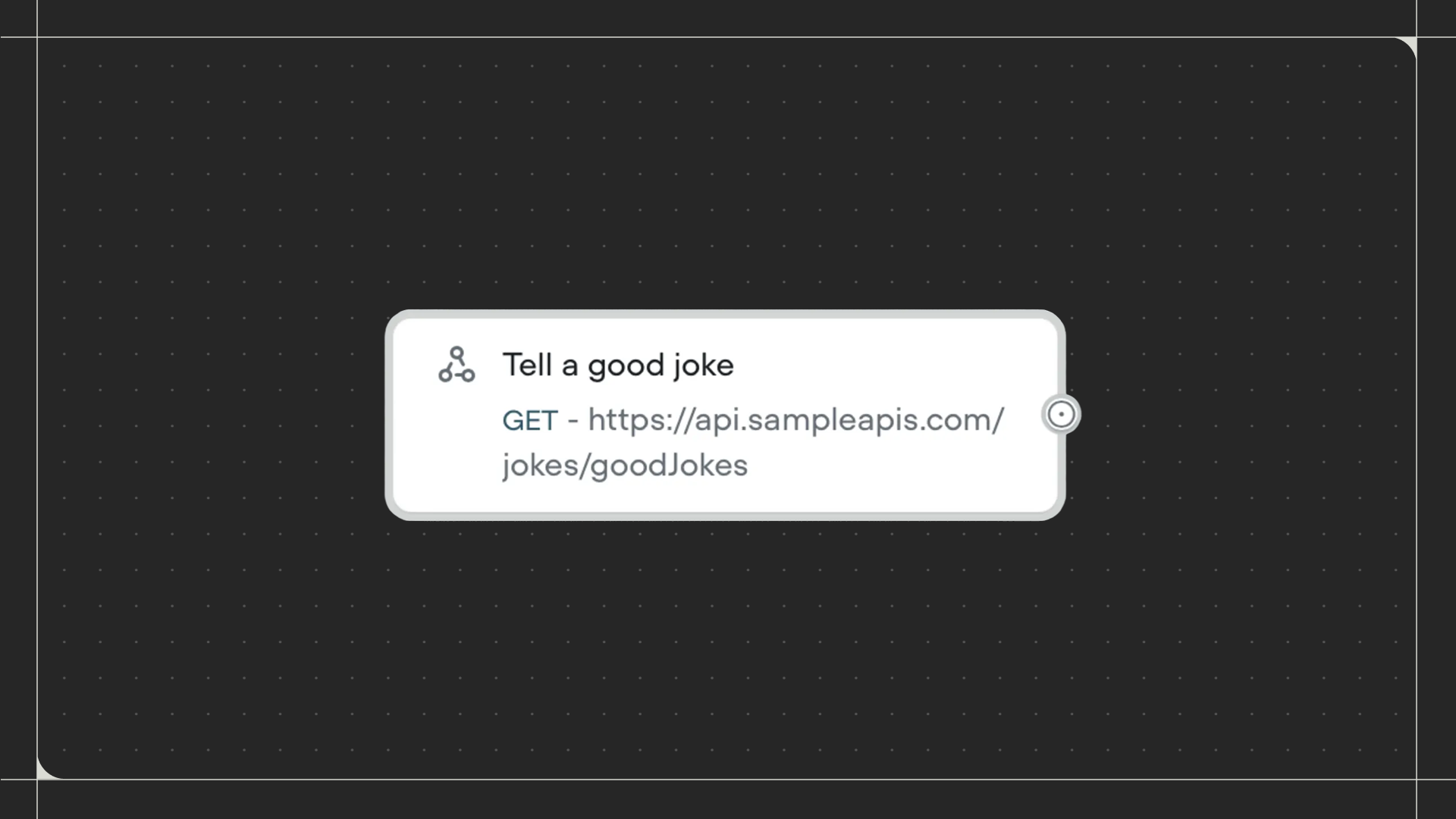
Using the API step
Drag the API step onto the canvas and connect it to the step before it. Click on the step to select which API tool to run. Select an existing API tool from the dropdown, or create a new one by clicking New API tool. Once selected, you’ll see the input variables that the tool accepts.Configuration
- Input variables: Provide values for each input variable the API tool expects. Enter specific text, numbers, or use variables from your workflow. Each input variable has a description explaining what information it needs.
- Capture response: Optionally save the API’s response to a variable. If the response contains structured data (like JSON), you can specify an object path to extract specific information (eg:
data.user.emailto get just the email from a larger response object). - Async execution: Toggle this on to allow your workflow to continue immediately without waiting for the API call to complete. When off, the workflow waits for the API response before moving to the next step. This can be useful when working with APIs that your workflow isn’t reliant on, like analytics APIs.