


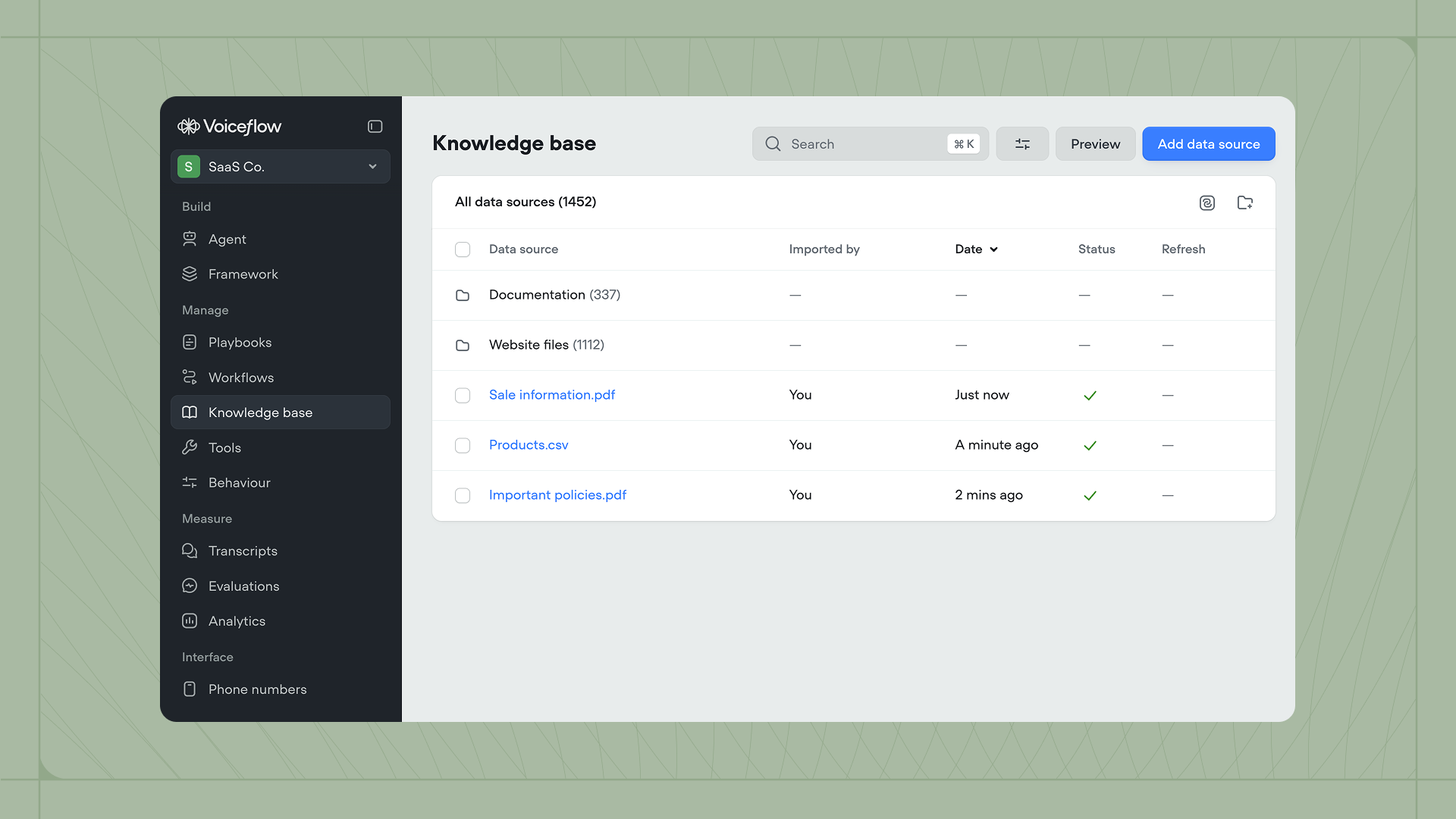
Importing data to the knowledge base
Open the Knowledge base tab in the sidebar, then click Add data source to import content.
Data source types
Voiceflow supports five data source types.- Web page(s) - Paste one or more URLs to import content from specific pages. Enter each URL on a new line. You can only import publicly accessible URLs.
- Website - Import all pages from a website by entering its sitemap URL. For most websites, the sitemap is found at
https://yourwebsite.com/sitemap.xml. This is ideal for importing entire help centers or documentation sites. - Docs - Upload document files (
.pdf,.txt, or.docx) up to 10 MB. Only text content is imported into the knowledge base. - Table - Upload table files (
.csvor.xlsx) up to 10 MB. Each row is imported as a separate chunk, with column headers used as field names. - Plain text - Paste raw content directly. This is useful for quick prototyping or testing with small amounts of content.
- Zendesk - Import articles from your Zendesk knowledge base. This requires Zendesk admin access.
Configuring import settings
After selecting your data source, you can configure how Voiceflow processes and maintains the imported content.Refresh rate
When importing from a URL or website, you can set a refresh rate to keep your knowledge base in sync with changes to the source content.| Option | Best for |
|---|---|
| Never | Static content that won’t change |
| Daily | Frequently updated content (eg: blogs, news sites) |
| Weekly | Occasionally updated content (eg: support centers) |
| Monthly | Stable content (eg: product policies, pricing pages) |
LLM chunking strategies
When your agent queries the knowledge base, it finds chunks of data most similar to the user’s question. LLM chunking strategies use AI to automatically split your content into optimized chunks, helping your agent find useful answers.| Strategy | Description | Best for |
|---|---|---|
| Smart chunking | Breaks content into logical sections grouped by topic | Complex documents with varied topics (eg: policy documents, course catalogs) |
| FAQ optimization | Creates sample questions that each section could answer | Product information, help center content |
| Remove HTML and noise | Cleans up messy website formatting to make text easier to process | Blog posts, markdown-heavy documents, CMS exports |
| Add topic headers | Adds brief summaries at the start of each section | Long documents needing context (eg: research papers, onboarding guides) |
| Summarize | Keeps only key points and removes filler content | Dense, lengthy content (eg: legal agreements, strategy briefs) |
Metadata
You can attach metadata to each data source you upload. This metadata can then be used as a filter when your agent queries the knowledge base. Metadata is useful when you have multiple brands, product lines, or subscription tiers and want to ensure the correct information is returned. For example, if you’re building an agent for a SaaS platform with different policies for enterprise versus self-serve customers, you could add metadata with the keyplan and value enterprise or self-serve to each data source.
To add metadata, click the + button in the Metadata section of the import configuration, then enter your key and values.
Troubleshooting data imports
If something goes wrong when importing your data, hover over the error icon to learn why. Import errors are handled gracefully: failed files won’t break your project, and the remaining files will still be processed.Querying the knowledge base
Your agent can query the knowledge base to find relevant information during conversations. To enable this, open the Agent tab and turn on the Knowledge base toggle in the Skills panel. Once enabled, your agent will automatically search the knowledge base when it needs information to answer user questions. Playbooks can also query the knowledge base independently. When editing a playbook, enable the Knowledge base toggle to give that playbook access to your imported content.