


user_id variable. If your agent is having conversations with ten different users at the same time, variable values are not shared between them.
Creating variables
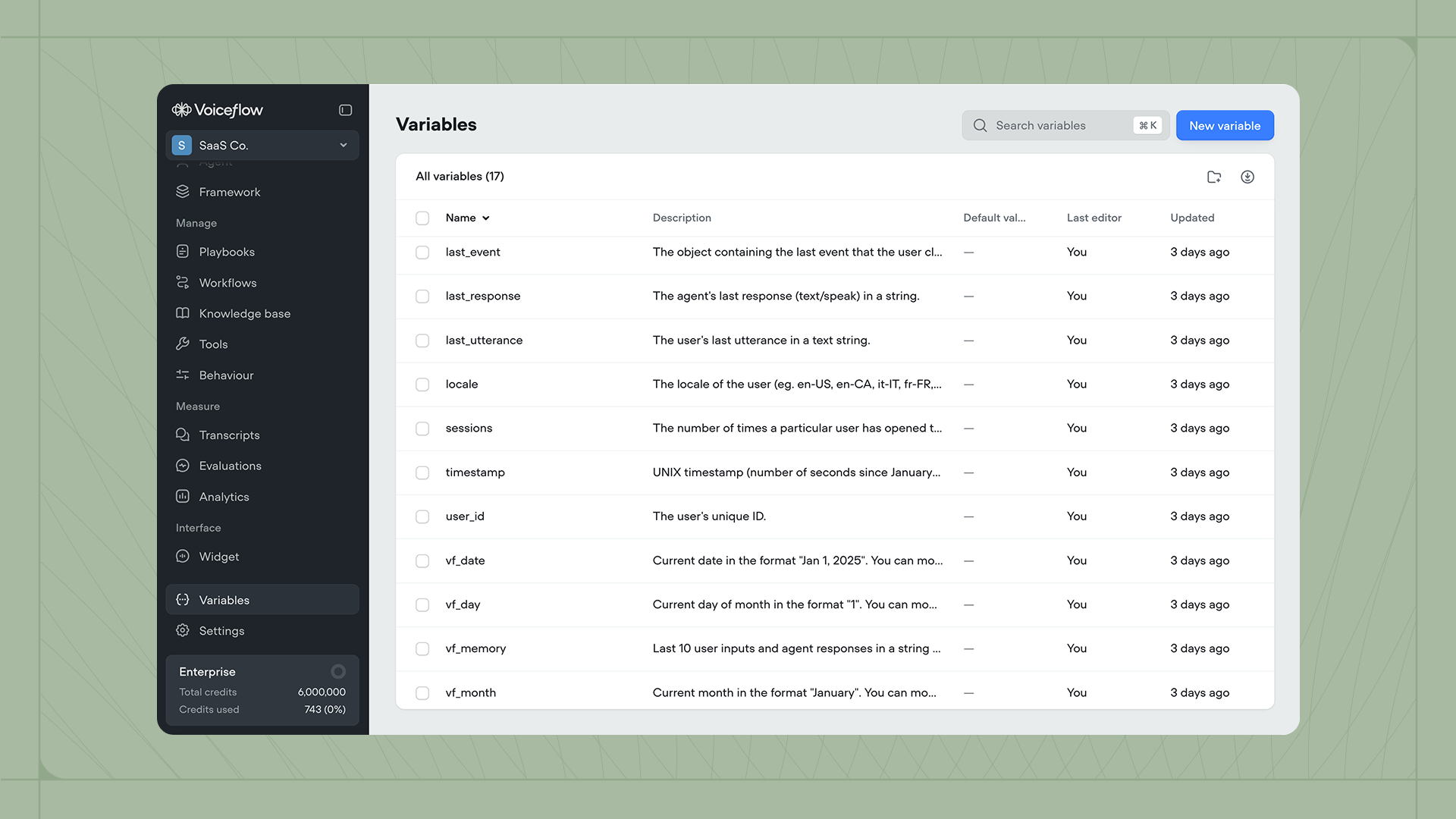
You can create and manage variables from the Variables tab in the sidebar. Click Add variable in the top right to create a new variable, or click an existing variable to modify it. (image) When creating a variable, you can optionally set a default value. We recommend doing so, as this provides a fallback for your agent to use.Using variables
Variables can be used inside most text inputs across Voiceflow. To reference a variable, type{ followed by the variable name, then select it from the dropdown.
(image)
For example, you can use variables in an Playbook’s instructions or as parameter values in an API call. You can also use variables inside the Condition step to add logic to your workflows.
Variables in playbooks
Playbooks can only access variables that are explicitly referenced in their instructions. To make a variable available to a playbook, include it using the{variable_name} syntax somewhere in that playbook’s instructions. Variables not referenced in the instructions won’t be visible to the playbook during execution.
Setting variable values
There are several ways to set a variable’s value during a conversation:- The Set step or Code step let you assign any string value to a variable.
- Responses from tools can be captured and stored using the capture response feature.
- Variables can be set agentically using exit conditions on a Playbook that is accessed through a Playbook step.
Built-in variables
Every project has access to built-in variables that are automatically set when a conversation begins or when certain actions occur.| Variable name | Description | Example |
|---|---|---|
user_id | The user’s unique ID, as set through the web chat widget or API. For phone integrations, this is automatically set to the caller’s phone number. | example_user or +16471234567 |
last_utterance | The previous message sent by the user. | My name is Braden and I like cookies. |
last_response | The agent’s most recent response to the user. | Hello, I'm an agent! How can I help today? |
last_event | Information about the last event the user triggered. Contains an object, not a string. | {"type":"event","payload":{"event":{"name":"buySyrup"}}} |
vf_memory | The last ten user inputs and agent responses as a string, including tool calls. | agent: Hey what's up?\nuser: I want to order maple syrup. |
vf_now | The current date and time in a human-readable format. You can modify the timezone in Settings → General. | Jan 1, 2025, 16:37 |
vf_date | The current date. | Jan 1, 2025 |
vf_time | The current time. | 16:37 |
vf_month | The current month. | January |
vf_day | The current day of the month. | 1 |
vf_year | The current year. | 2025 |
vf_user_timezone | The user’s timezone. Defaults to the project timezone if unavailable. | America/Toronto |
sessions | The number of times this user has opened the agent. | 8 |
timestamp | The UNIX timestamp of when the conversation began. | 873700668 |
locale | The user’s locale, detected from their browser. | en-CA |
platform | The platform your agent is running on. | voiceflow |