


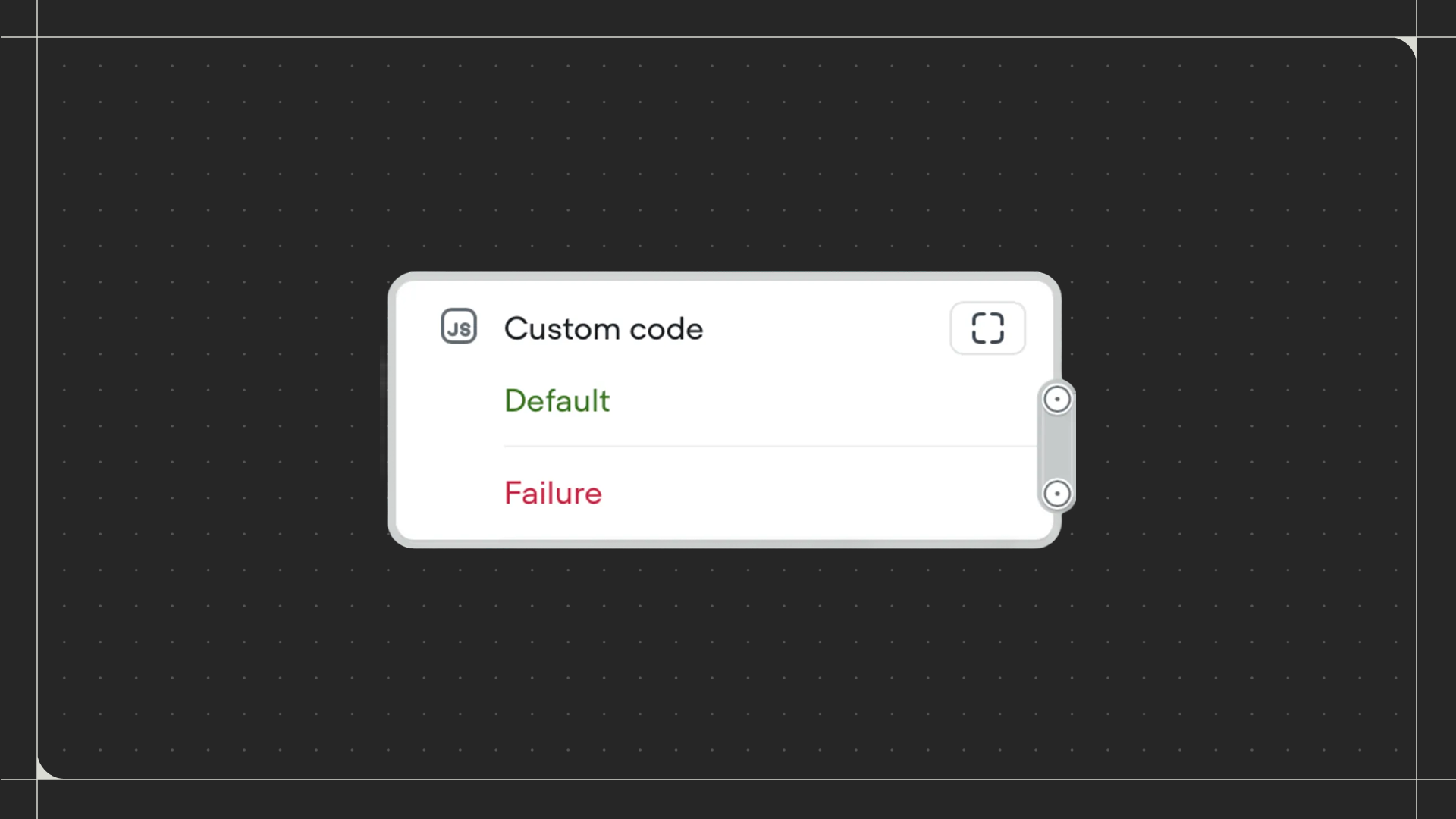
Using the Code step
Drag the Code step onto the canvas and connect it to the step before it. Click on the step to open the code editor where you can write your JavaScript code. All of your agent’s variables are automatically available in the code editor. You can reference and modify them directly without using curly braces. For example, to increment ascore variable by 1, simply write score = score + 1.
Configuring paths
The Code step includes two paths:- Default path: The workflow follows this path when your code runs successfully.
- Failure path: The workflow follows this path if your code encounters an error during execution. Toggle this path on to handle errors gracefully.
return [path_name] in your code to direct the workflow to that specific path. If your code doesn’t return a path name, the workflow continues through the Default path.
Limitations
- The Code step cannot make requests to external servers or call external APIs. Use the API step or Function step for these tasks.
- The Code step does not support importing JavaScript modules.
- Variables created inside the Code step only exist while the step is running. To use a variable after the Code step finishes, create it as a variable inside your project first before referencing it in your code.