Functions are an advanced feature designed to be used by developers. If you just need to do an API call, we recommend using the API tool instead.
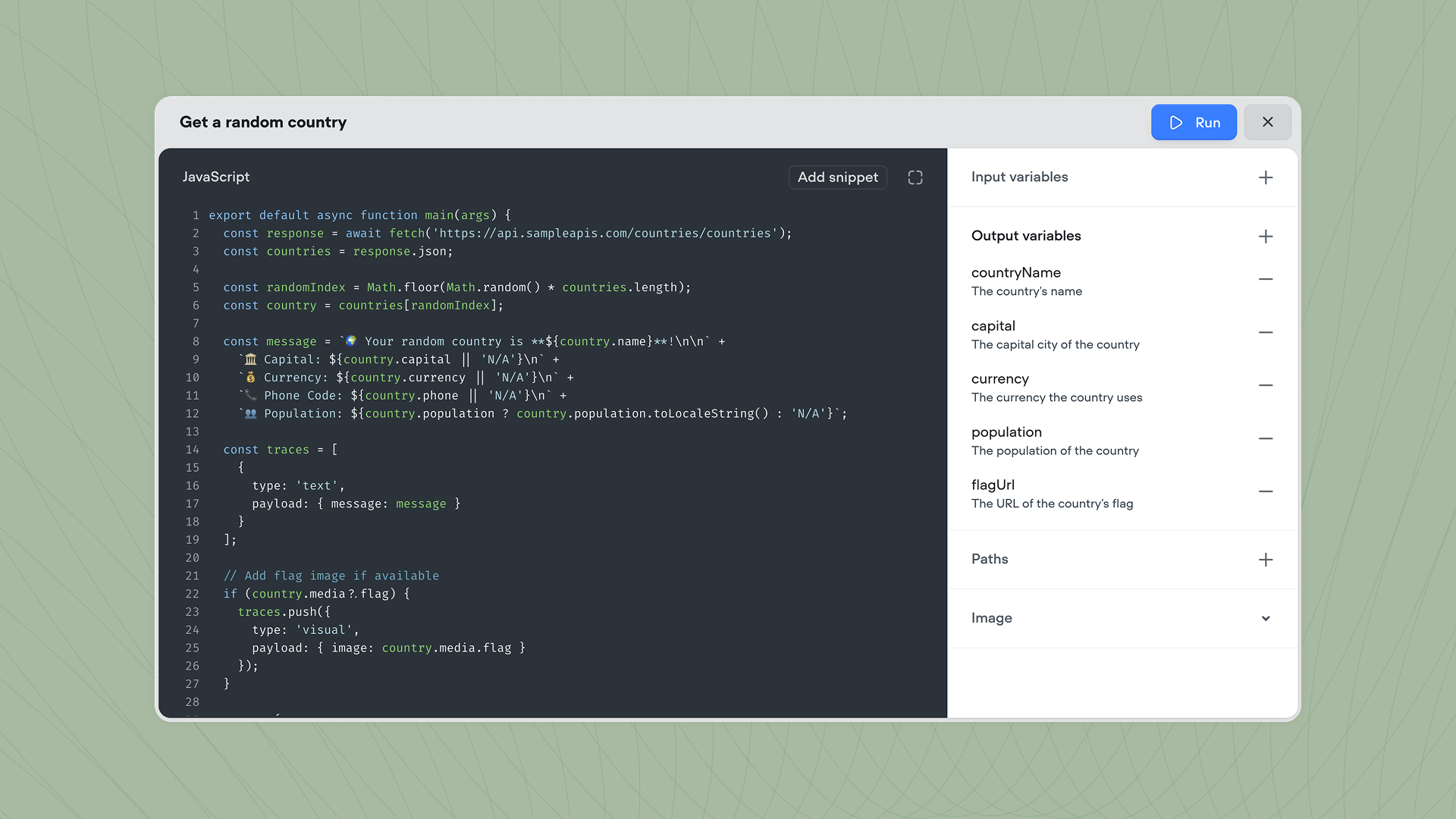
Function tool The Function tool lets you write reusable JavaScript functions that your agent can call during a conversation. Use it for tasks like transforming data, making API calls to external services, performing calculations, or any custom logic that goes beyond what built-in tools provide. Functions are written in JavaScript (ES6 on V8) and can accept input variables, return output variables, and generate responses like text messages, cards, or carousels. When used in workflows, functions can also define multiple exit paths based on their results.

Creating a Function tool

Create a new Function tool from ToolsNew toolFunction, or click FunctionCreate new function directly from a Playbook’s tool panel. Once created, you can call the Function tool from inside a Playbook or Workflow using the Function step. A Function tool cannot be used directly by the Agent. Each function has four components:
  • Input variables: Data passed into the function when it runs. You can optionally add descriptions to each input variable.
  • Output variables: Data returned by the function that can be used later in the conversation.
  • Paths: Different exit routes the function can take based on its results. Only available when used in workflows.
  • Code: The JavaScript logic that processes inputs and returns results.

Writing function code

Every function must export a default async main function. This is the entry point Voiceflow calls when the function runs.
export default async function main(args) {
  // Your function logic goes here
}

Accessing input variables

Input variables are available through args.inputVars:
export default async function main(args) {
  const { name, email } = args.inputVars;
  
  // Use the variables in your logic
  const greeting = `Hello, ${name}!`;
}

Returning results

Functions return an object containing runtime commands that tell Voiceflow what to do next:
export default async function main(args) {
  const { text } = args.inputVars;
  const uppercaseText = text.toUpperCase();

  return {
    outputVars: {
      result: uppercaseText
    },
    next: {
      path: 'success'
    },
    trace: [
      {
        type: 'text',
        payload: {
          message: `Converted "${text}" to "${uppercaseText}"`
        }
      }
    ]
  };
}
The return object supports three properties:
  • outputVars: An object mapping output variable names to their values. These variables must also have been set in the sidebar of the function window.
  • next: Specifies which path to exit through (eg: { path: 'success' }). If your function has no paths defined, a default exit is used automatically. Paths are ignored when functions are used in Playbooks.
  • trace: An array of traces that become part of the agent’s response.

Making network requests

Functions have access to a modified fetch API for calling external services:
export default async function main(args) {
  const response = await fetch('https://api.example.com/data');
  const data = response.json;

  return {
    outputVars: {
      result: data
    }
  };
}
For POST requests or custom headers:
const response = await fetch('https://api.example.com/submit', {
  method: 'POST',
  headers: {
    'Content-Type': 'application/json',
    'Authorization': 'Bearer YOUR_TOKEN'
  },
  body: JSON.stringify({ name, email })
});

const data = response.json;

Differences from standard fetch

The Voiceflow fetch API differs from the standard browser/Node.js fetch in how you access the response body. Instead of calling .json() as a method, access the .json property directly:
// Standard fetch (NOT supported)
const data = await response.json();

// Voiceflow fetch
const data = response.json;
To parse responses as other formats, pass a third argument:
// Parse as plain text
const response = await fetch(url, requestInit, { parseType: 'text' });
const text = response.text;

// Parse as array buffer
const response = await fetch(url, requestInit, { parseType: 'arrayBuffer' });
const buffer = response.arrayBuffer;

Supported traces

Traces let your function generate responses as part of the conversation. Different trace types are available depending on your project type.

Text traces (all project types)

// Text message
{ type: 'text', payload: { message: 'Hello!' } }

// Debug message (only visible in test tool, not to users)
{ type: 'debug', payload: { message: 'Debug info here' } }

Visual traces (chat projects only)

// Image
{ type: 'visual', payload: { image: 'https://example.com/image.png' } }


// Buttons
{
  type: 'choice',
  payload: {
    buttons: [
      { name: 'Option A', request: { type: 'option_a' } },
      { name: 'Option B', request: { type: 'option_b' } }
    ]
  }
}

// Card
{
  type: 'cardV2',
  payload: {
    title: 'Card Title',
    description: { text: 'Card description' },
    imageUrl: 'https://example.com/image.png',
    buttons: [
      { name: 'Learn More', request: { type: 'learn_more' } }
    ]
  }
}

// Carousel
{
  type: 'carousel',
  payload: {
    cards: [
      {
        title: 'First Card',
        description: { text: 'Description' },
        imageUrl: 'https://example.com/image1.png',
        buttons: [{ name: 'Select', request: { type: 'select_1' } }]
      },
      {
        title: 'Second Card',
        description: { text: 'Description' },
        imageUrl: 'https://example.com/image2.png',
        buttons: [{ name: 'Select', request: { type: 'select_2' } }]
      }
    ]
  }
}

Listening for user input (workflows only)

When a function is used in a workflow via the Function step, it can pause execution and wait for user input using listen functionality. This is useful when you want the user to click a button or make a selection before continuing. Note: Listen functionality is not available when functions are called from Playbooks. To enable listening, use the next command with listen: true:
export default async function main(args) {
  return {
    trace: [
      {
        type: 'choice',
        payload: {
          buttons: [
            { name: 'Yes', request: { type: 'confirm', payload: { value: true } } },
            { name: 'No', request: { type: 'confirm', payload: { value: false } } }
          ]
        }
      }
    ],
    next: {
      listen: true,
      to: [
        { on: { 'event.type': 'confirm', 'event.payload.value': true }, dest: 'confirmed' },
        { on: { 'event.type': 'confirm', 'event.payload.value': false }, dest: 'declined' }
      ],
      defaultTo: 'fallback'
    }
  };
}
The next command for listening includes:
  • listen: Set to true to pause and wait for input, or false to continue immediately while keeping events available for later.
  • to: An array of conditions. Each condition has an on query (using MongoDB-style syntax) and a dest path to exit through if matched.
  • defaultTo: The path to use if no conditions match.

Persistent events

When listen is set to false, the function continues immediately but the defined events persist for the entire session. Users can trigger these events at any point later in the conversation:
next: {
  listen: false,
  to: [
    { on: { 'event.type': 'item_selected' }, dest: 'handle_selection' }
  ],
  defaultTo: 'continue'
}

Testing functions

You can test your function directly in the editor by clicking Run in the top right corner of the function window. The test panel lets you enter values for your input variables and shows the output variables, traces, and execution time. Use debug traces to surface diagnostic information during testing:
return {
  trace: [
    { type: 'debug', payload: { message: 'API returned status: ' + response.status } }
  ]
};
Debug traces appear when testing your agent but are hidden from users in production.

Limitations

Function tools have some important limitations:
  • No module imports: you cannot import external npm packages or use require().
  • No browser/Node.js APIs: methods like setTimeout(), setInterval(), and other runtime-specific APIs are not available. Only standard ECMAScript built-ins are supported.
  • No paths in Playbooks: functions called from Playbooks cannot use multiple paths or listen functionality. They can only return output variables and traces.